Talk
WhatsApp CRM: chat on your own number
Link your WhatsApp number to Gandiv so conversations show up on the lead, quick replies are one tap, and the team never loses a thread when someone leaves.
QR
number sync
Quick replies
with variables
Chat on lead
full history kept
Number sync
Link your number by scanning a QR
Scan a QR code to connect an existing WhatsApp number, and its conversations appear in the CRM. This is quick for small teams, but it relies on an unofficial route, so read the risk note below before you depend on it.
- Scan to connect
- Multiple agents per number
- Disconnect any time
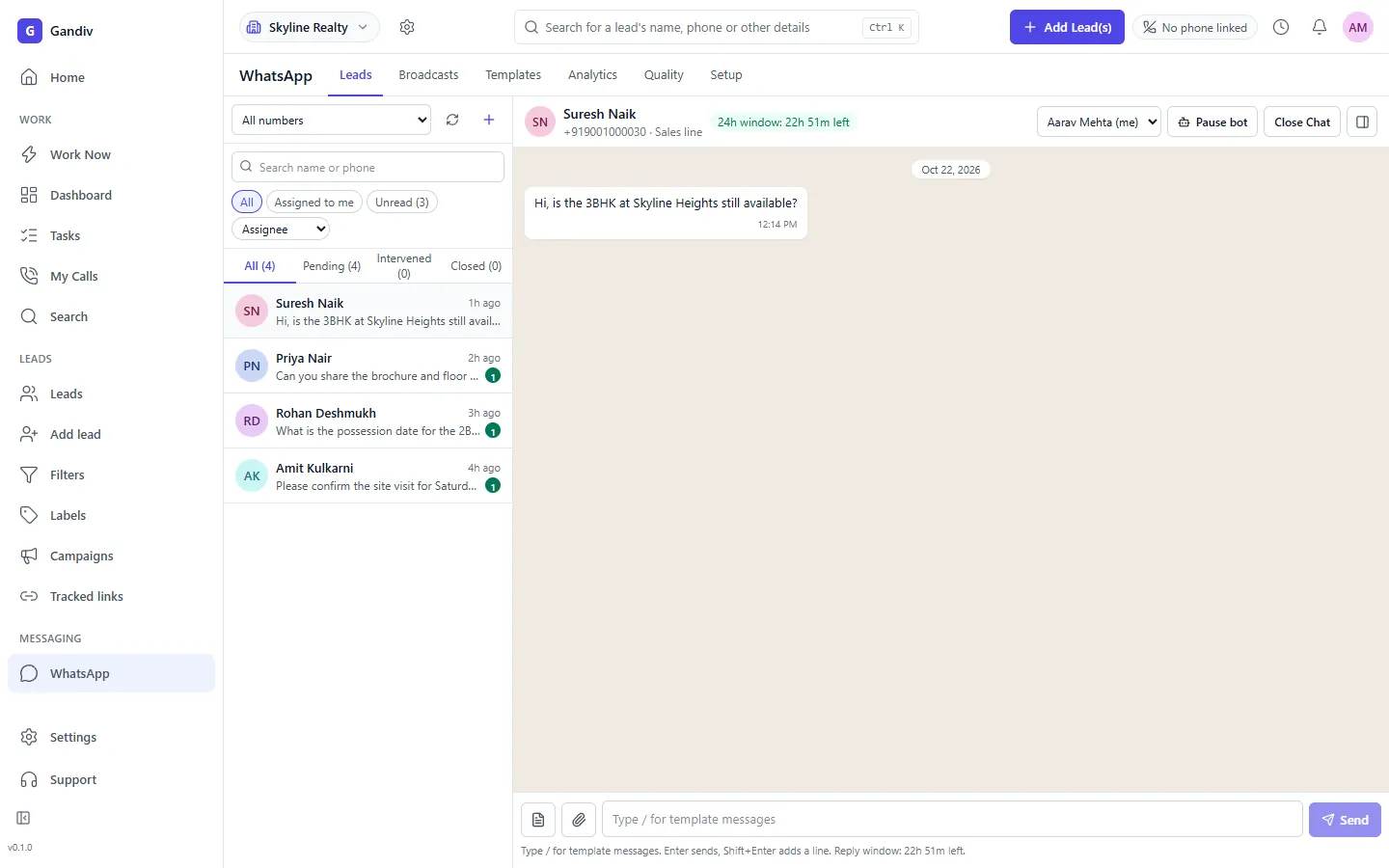
Chat on lead
Every conversation sits on the lead
Messages, images, PDFs and voice notes are attached to the matching lead record. A colleague can pick up the thread, see what was promised, and reply without asking the customer to repeat anything.
- Media and documents saved
- Matched by phone number
- Notes beside the chat
Chat on lead
- Media and documents saved
- Matched by phone number
- Notes beside the chat
Quick replies
Answer common questions in one tap
Save replies for price lists, brochures, location pins and payment details, and insert the customer's name or project automatically. New agents answer like veterans on day one, and tone stays consistent.
- Shortcut commands
- Name and field variables
- Attach brochure or image
Quick replies
- Shortcut commands
- Name and field variables
- Attach brochure or image
Team visibility
See who said what, and when
Managers can see response times and open conversations across agents, and assign chats to the right owner. A chat that sits unanswered shows up in a list instead of disappearing in someone's phone.
- Response-time view
- Assign and transfer chats
- Unanswered chat list
Team visibility
- Response-time view
- Assign and transfer chats
- Unanswered chat list
Ban-risk note
Know the risk before you rely on it
Syncing a personal or business-app number through a QR route is not an official WhatsApp integration. WhatsApp can restrict or ban numbers that behave like bulk senders. Use this for one-to-one conversations, not broadcasts.
- Unofficial route, policy risk
- Avoid bulk or cold messaging
- Move to the Business API
Ban-risk note
- Unofficial route, policy risk
- Avoid bulk or cold messaging
- Move to the Business API
Upgrade path
Move to the official API when you grow
When volume, broadcasts or automation matter, switch to the WhatsApp Business API from the same CRM. Your leads and history stay in place, and you gain templates, a team inbox and compliant broadcasts.
- Same leads and history
- Templates and broadcast
- No re-import needed
Upgrade path
- Same leads and history
- Templates and broadcast
- No re-import needed
How it works
- 1
Connect your number
Scan the QR code from the WhatsApp linked-devices screen.
- 2
Chat from the lead
Reply from the lead page using quick replies and attachments.
- 3
Scale safely
Move to the Business API for broadcasts and automation.
Used in these industries
Related features
Frequently asked questions
Is syncing my WhatsApp number safe?
Not without risk. QR-based sync is not an official integration, and WhatsApp can restrict or ban numbers that break its policies. The Business API is the compliant route, and we recommend it for anything at scale.
Can I send bulk messages from a synced number?
We advise against it. Bulk or unsolicited messaging is the most common cause of bans. Use the Business API with approved templates and opt-in instead.
Can several agents use one number?
Yes. Agents chat from the CRM on the same number, with each conversation assigned to an owner.
What happens to chats if an agent leaves?
Chats stay on the lead in the CRM and can be reassigned, so the history remains with your company.
Do I lose my chats if I disconnect?
Messages already synced to the CRM remain on the leads. Disconnecting stops new messages from syncing.
See Gandiv on your own leads
Start free, or book a short demo and we will set it up with your pipeline.